We can start to configure the synchronization interface at the operating system level before the gateways are connected to a Security Management Server (SMS).
Since the sync link runs over a VirtualBox Internal Network rather than a physical crossover cable, the first thing worth confirming isn’t Check Point configuration at all, it’s whether Layer 2 is actually behaving the way a real cable would.
Step 1 — Verify Layer 2 connectivity with ARP
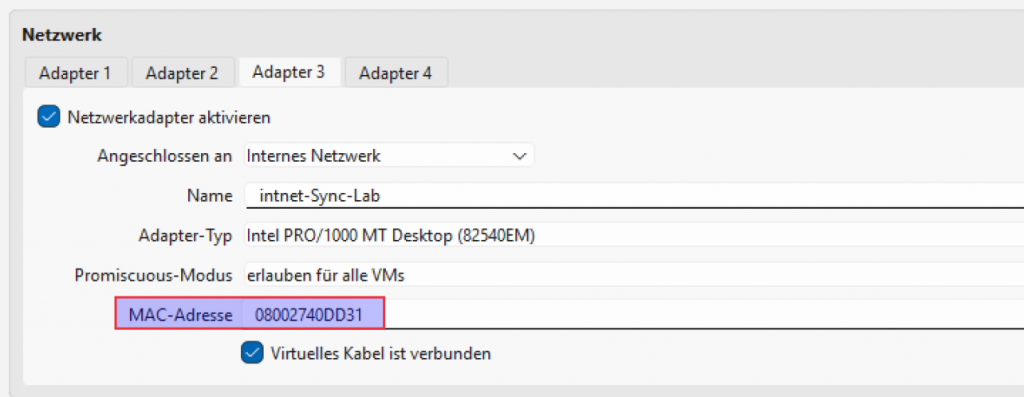
Before touching ClusterXL settings, bring up the sync interface on both gateways with an IP from the 10.0.0.0/30 link and ping across it. Then check the ARP table on each side:
arp -a | grep 10.0.0.2  # from gw1
arp -a | grep 10.0.0.1  # from gw2
The goal is to confirm each gateway has learned the other’s MAC address on that interface. Since VirtualBox Internal Network mode creates a private virtual switch, seeing a valid ARP entry for the peer confirms that:
- the two VMs are actually landing on the same internal network segment (no typo in the internal network name),
- there’s no VLAN/adapter mismatch causing one side to be isolated,
- broadcast traffic (which ARP relies on) is being forwarded correctly by VirtualBox’s virtual switch, the same as a real switch or crossover cable would.
If the ARP entry doesn’t show up, it’s almost always a VirtualBox networking issue (wrong internal network name, adapter not enabled, or promiscuous mode blocking traffic) rather than a Check Point problem, worth ruling out before debugging cluster sync itself.
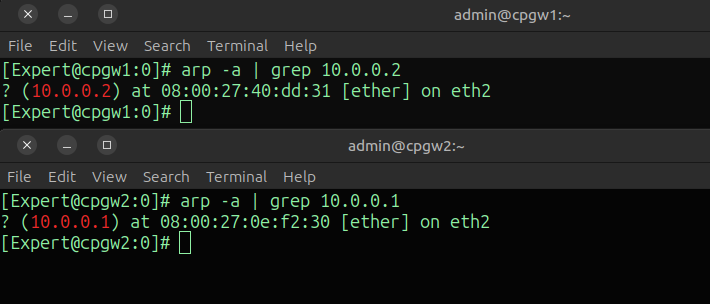
GW1:
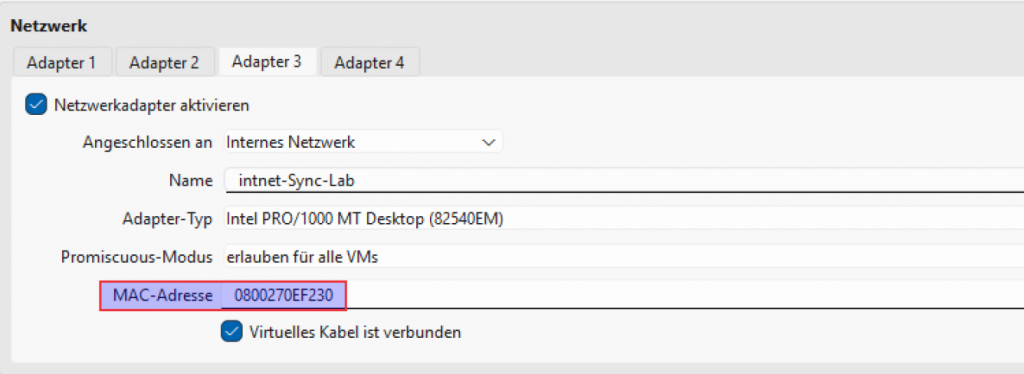
GW2:
Step 2 — enable cluster membership
you can enable cluster membership on both gateways at the OS level via Gaia Portal or CLI (cpconfig / Clish) before connecting them to the Security Management Server
cpconfigConfiguration Options:
----------------------
(1) Licenses and contracts
(2) SNMP Extension
(3) PKCS#11 Token
(4) Random Pool
(5) Secure Internal Communication
(6) Enable cluster membership for this gateway
(7) Enable Check Point Per Virtual System State
(8) Enable Check Point ClusterXL for Bridge Active/Standby
(9) Check Point CoreXL
(10) Automatic start of Check Point Products
Enter your choice (1-11) :Step 3 — validate sync state
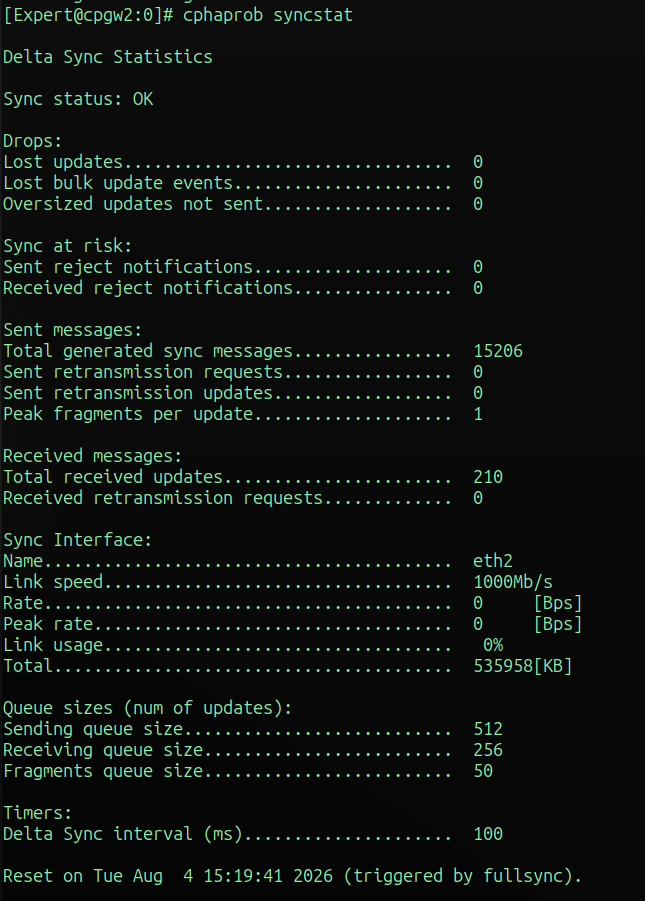
cphaprob stat should show one member Active and the other Standby, and cphaprob syncstat should report the sync channel as OK with no lag. At this point, state table replication between the two members is live — killing the active member should fail traffic over to the standby without dropping existing sessions.
cphaprob stat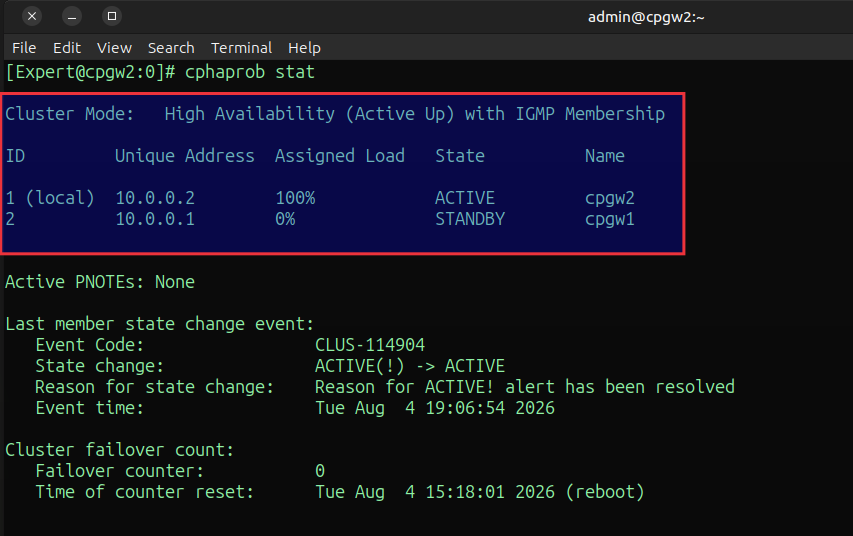
cphaprob syncstat