
This Lab is an extension of the official Microsoft Learning Lab: M01 – Unit 6 Configure DNS settings in Azure | AZ-700-Designing-and-Implementing-Microsoft-Azure-Networking-Solutions
In that unit, you will ask to configure DNS name resolution for Contoso Ltd, create a private DNS zone named contoso.com, link the VNets for registration and resolution, and then create two virtual machines and test the configuration.
Introduction
In the original Microsoft Azure lab “M01 – Unit 6 Configure DNS settings in Azure”, the environment is typically based on Windows virtual machines. For this variation, the lab was adapted to use three Ubuntu Linux virtual machines instead of Windows VMs.
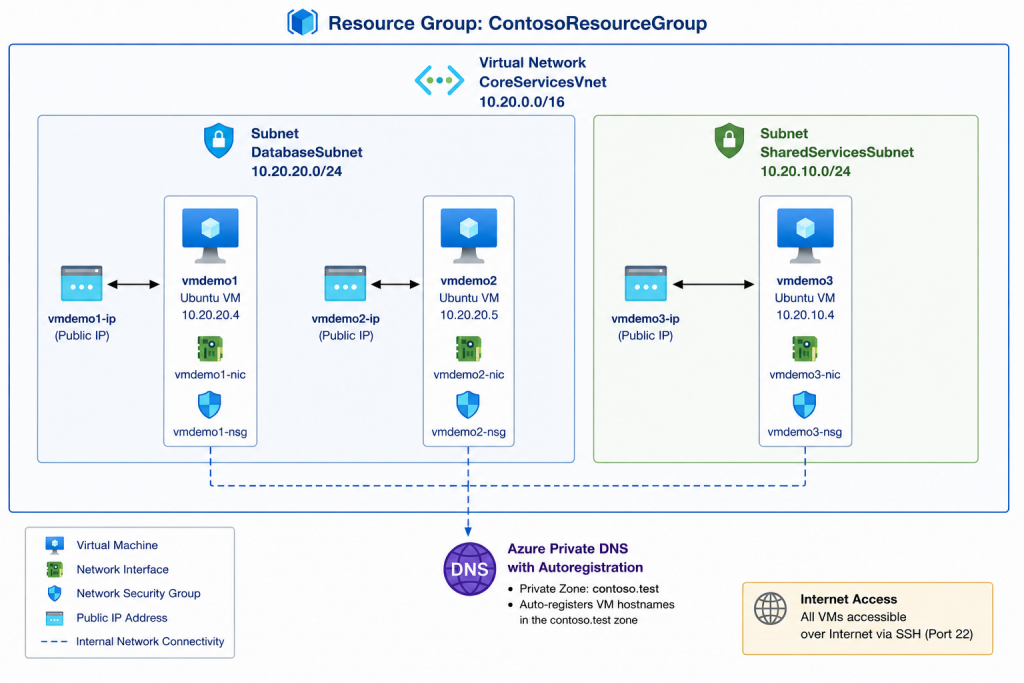
Additionally, the network topology was extended by placing the third VM in a separate subnet named SharedServicesSubnet. This modification provides a more realistic enterprise-style architecture where infrastructure or shared services are isolated from application workloads.
The objectives of this lab were:
- Reuse the Contoso Ltd Virtual Network’s subnets created on the M01-04 Lab
- Configure Azure DNS settings
- Deploy Ubuntu virtual machines (vmdemo1, vmdemo2 and vmdemo3)
- Understand how Azure-provided DNS behaves across subnets
- Validate name resolution between VMs
- Test cross-subnet communication
Figure 1: Lab Topology
Requirements
You need one virtual network with at the least two Subnets. Check M01-04 Lab
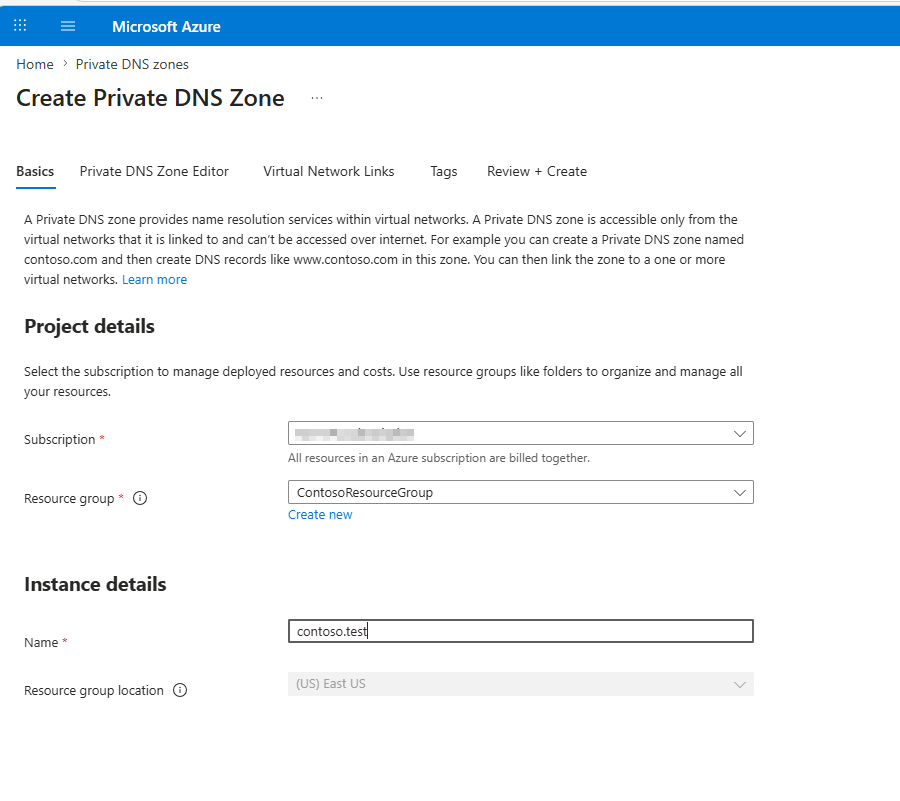
Task 1: Create a private DNS Zone
Task 2: Link Vnet for auto registration
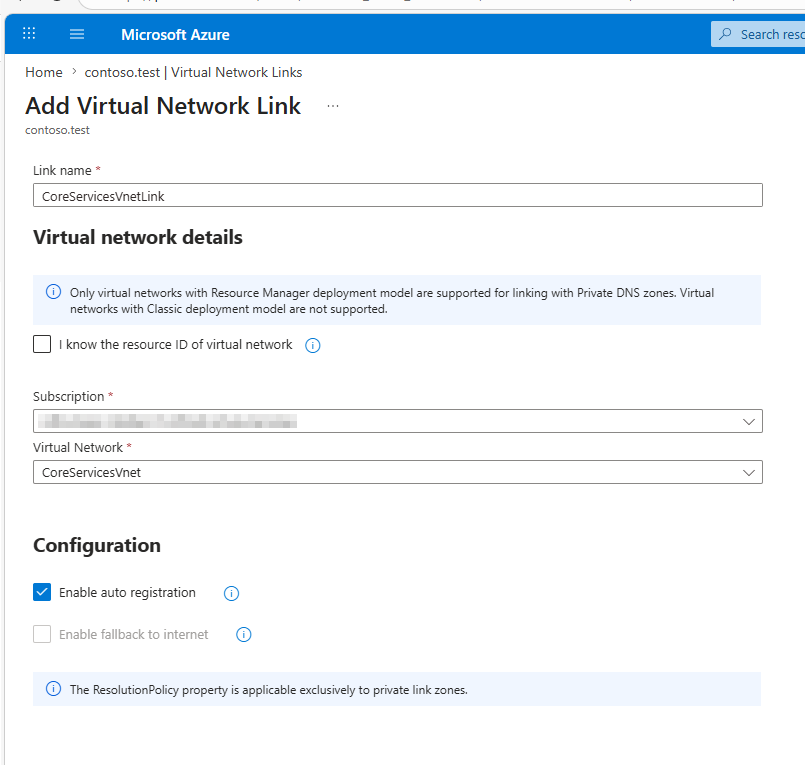
- In Contoso.test, under DNS Management, select Virtual Network Links.
- On Contoso.test | Virtual Network Links, select + Add.
- Select the Vnet you want to link
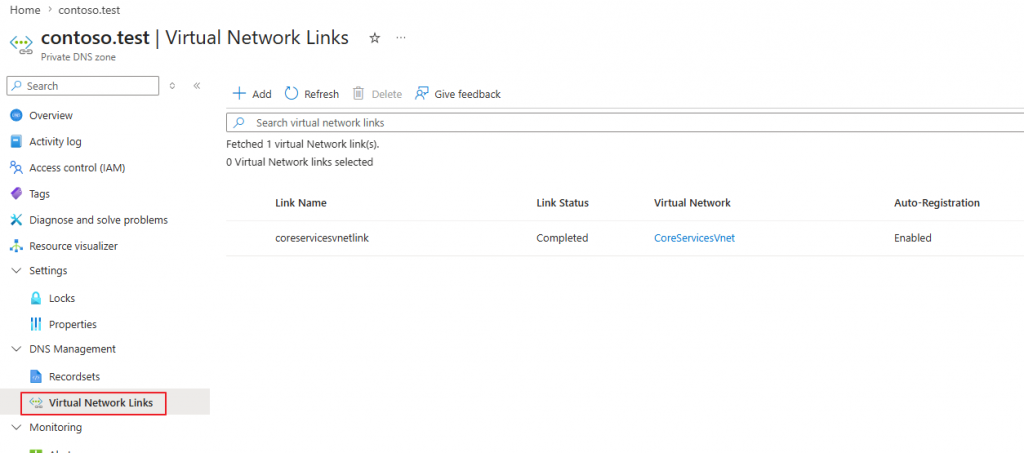
4. Verify that the CoreServicesVnetLink has been created, and that auto-registration is enabled
Task 3: Create Virtual Machines Template and parameters .json files
To automate the environment creation and ensure deployment consistency, the virtual machines and networking resources were deployed using an Azure Resource Manager (ARM) template.
The deployment was divided into:
- 1 ARM template
- 3 parameter files
This approach allows reusable infrastructure-as-code (IaC) deployments while maintaining flexibility between VM configurations.
A) ARM Template
You can reuse it for multiple VM deployments. Eventually you can readjust or remove the “Tags” section.
"$schema": "http://schema.management.azure.com/schemas/2015-01-01/deploymentTemplate.json#",
    "contentVersion": "1.0.0.0",
    "parameters": {
        "location": {
            "type": "string"
        },
        "networkInterfaceName": {
            "type": "string"
        },
        "networkSecurityGroupName": {
            "type": "string"
        },
        "networkSecurityGroupRules": {
            "type": "array"
        },
        "subnetId": {
            "type": "string"
        },
        "virtualNetworkId": {
            "type": "string"
        },
        "publicIpAddressName": {
            "type": "string"
        },
        "publicIpAddressType": {
            "type": "string"
        },
        "publicIpAddressSku": {
            "type": "string"
        },
        "pipDeleteOption": {
            "type": "string"
        },
        "virtualMachineName": {
            "type": "string"
        },
        "virtualMachineComputerName": {
            "type": "string"
        },
        "virtualMachineRG": {
            "type": "string"
        },
        "osDiskType": {
            "type": "string"
        },
        "osDiskDeleteOption": {
            "type": "string"
        },
        "virtualMachineSize": {
            "type": "string"
        },
        "nicDeleteOption": {
            "type": "string"
        },
        "hibernationEnabled": {
            "type": "bool"
        },
        "adminUsername": {
            "type": "string"
        },
        "adminPassword": {
            "type": "secureString"
        },
        "enablePeriodicAssessment": {
            "type": "string"
        }
    },
    "variables": {
        "nsgId": "[resourceId(resourceGroup().name, 'Microsoft.Network/networkSecurityGroups', parameters('networkSecurityGroupName'))]",
        "subnetRef": "[parameters('subnetId')]",
        "vnetId": "[parameters('virtualNetworkId')]",
        "vnetName": "[last(split(variables('vnetId'), '/'))]"
    },
    "resources": [
        {
            "name": "[parameters('networkInterfaceName')]",
            "type": "Microsoft.Network/networkInterfaces",
            "apiVersion": "2022-11-01",
            "location": "[parameters('location')]",
            "dependsOn": [
                "[concat('Microsoft.Network/networkSecurityGroups/', parameters('networkSecurityGroupName'))]",
                "[concat('Microsoft.Network/publicIpAddresses/', parameters('publicIpAddressName'))]"
            ],
            "properties": {
                "ipConfigurations": [
                    {
                        "name": "ipconfig1",
                        "properties": {
                            "subnet": {
                                "id": "[variables('subnetRef')]"
                            },
                            "privateIPAllocationMethod": "Dynamic",
                            "publicIpAddress": {
                                "id": "[resourceId(resourceGroup().name, 'Microsoft.Network/publicIpAddresses', parameters('publicIpAddressName'))]",
                                "properties": {
                                    "deleteOption": "[parameters('pipDeleteOption')]"
                                }
                            }
                        }
                    }
                ],
                "networkSecurityGroup": {
                    "id": "[variables('nsgId')]"
                }
            },
            "tags": {
                 "Lab": "M01-Unit 6"
            }
        },
        {
            "name": "[parameters('networkSecurityGroupName')]",
            "type": "Microsoft.Network/networkSecurityGroups",
            "apiVersion": "2020-05-01",
            "location": "[parameters('location')]",
            "properties": {
                "securityRules": "[parameters('networkSecurityGroupRules')]"
            },
            "tags": {
                 "Lab": "M01-Unit 6"
            }
        },
        {
            "name": "[parameters('publicIpAddressName')]",
            "type": "Microsoft.Network/publicIpAddresses",
            "apiVersion": "2023-06-01",
            "location": "[parameters('location')]",
            "properties": {
                "publicIpAllocationMethod": "[parameters('publicIpAddressType')]"
            },
            "sku": {
                "name": "[parameters('publicIpAddressSku')]"
            },
            "tags": {
                 "Lab": "M01-Unit 6"
            }
        },
        {
            "name": "[parameters('virtualMachineName')]",
            "type": "Microsoft.Compute/virtualMachines",
            "apiVersion": "2024-03-01",
            "location": "[parameters('location')]",
            "dependsOn": [
                "[concat('Microsoft.Network/networkInterfaces/', parameters('networkInterfaceName'))]"
            ],
            "properties": {
                "hardwareProfile": {
                    "vmSize": "[parameters('virtualMachineSize')]"
                },
                "storageProfile": {
                    "osDisk": {
                        "createOption": "fromImage",
                        "managedDisk": {
                            "storageAccountType": "[parameters('osDiskType')]"
                        },
                        "deleteOption": "[parameters('osDiskDeleteOption')]"
                    },
                    "imageReference": {
                        "publisher": "canonical",
                        "offer": "ubuntu-24_04-lts",
                        "sku": "server",
                        "version": "latest"
                    }
                },
                "networkProfile": {
                    "networkInterfaces": [
                        {
                            "id": "[resourceId('Microsoft.Network/networkInterfaces', parameters('networkInterfaceName'))]",
                            "properties": {
                                "deleteOption": "[parameters('nicDeleteOption')]"
                            }
                        }
                    ]
                },
                "securityProfile": {},
                "additionalCapabilities": {
                    "hibernationEnabled": false
                },
                "osProfile": {
                    "computerName": "[parameters('virtualMachineComputerName')]",
                    "adminUsername": "[parameters('adminUsername')]",
                    "adminPassword": "[parameters('adminPassword')]",
                    "linuxConfiguration": {
                        "patchSettings": {
                            "assessmentMode": "[parameters('enablePeriodicAssessment')]",
                            "patchMode": "ImageDefault"
                        }
                    }
                }
            },
            "tags": {
                "Lab": "M01-Unit 6"
            }
        }
    ],
    "outputs": {
        "adminUsername": {
            "type": "string",
            "value": "[parameters('adminUsername')]"
        }
    }
}
B) Vmdemo Virtual Machine parameters File
The external parameter files were designed to support parameterized deployments, allowing customization of VM names, subnet assignments, and IP addressing configurations.
Before starting the deployment, update the parameter file with the following information:
- Your Subscription ID
- Resource Group name
The same parameter file structure can be reused for all three virtual machines parameters file. You only need to modify the VM-specific values such as:
- VM name (
vmdemo1,vmdemo2,vmdemo3) - Public IP resource name
- Network Interface Card (NIC) name
- Network Security Group (NSG) name
- Other dependent resources
All virtual machines will be accessible from the Internet through SSH on port 22 (see Figure 1).
{
    "$schema": "https://schema.management.azure.com/schemas/2015-01-01/deploymentParameters.json#",
    "contentVersion": "1.0.0.0",
    "parameters": {
        "location": {
            "value": "westeurope"
        },
        "networkInterfaceName": {
            "value": "vmdemo1nc"
        },
        "networkSecurityGroupName": {
            "value": "vmdemo1-nsg"
        },
        "networkSecurityGroupRules": {
            "value": [
                {
                    "name": "SSH",
                    "properties": {
                        "priority": 300,
                        "protocol": "TCP",
                        "access": "Allow",
                        "direction": "Inbound",
                        "sourceAddressPrefix": "*",
                        "sourcePortRange": "*",
                        "destinationAddressPrefix": "*",
                        "destinationPortRange": "22"
                    },

                    "name": "Ping",
                    "properties": {
                        "priority": 310,
                        "protocol": "*",
                        "access": "Allow",
                        "direction": "Inbound",
                        "sourceAddressPrefix": "*",
                        "sourcePortRange": "*",
                        "destinationAddressPrefix": "*",
                        "destinationPortRange": "*"
                }
				}]
        },
        "subnetId": {
            "value": "/subscriptions/your-subscription-id-here/resourceGroups/resource-group-name-here/providers/Microsoft.Network/virtualNetworks/CoreServicesVnet/subnets/DatabaseSubnet"
        },
        "virtualNetworkId": {
            "value": "/subscriptions/your-subscription-id-here/resourceGroups/resource-group-name-here/providers/Microsoft.Network/virtualNetworks/CoreServicesVnet"
        },
        "publicIpAddressName": {
            "value": "vmdemo1-ip"
        },
        "publicIpAddressType": {
            "value": "Static"
        },
        "publicIpAddressSku": {
            "value": "Standard"
        },
        "pipDeleteOption": {
            "value": "Delete"
        },
        "virtualMachineName": {
            "value": "vmdemo1"
        },
        "virtualMachineComputerName": {
            "value": "vmdemo1"
        },
        "virtualMachineRG": {
            "value": "resource-group-name-here"
        },
        "osDiskType": {
            "value": "Standard_LRS"
        },
        "osDiskDeleteOption": {
            "value": "Delete"
        },
        "virtualMachineSize": {
            "value": "Standard_B1s"
        },
        "nicDeleteOption": {
            "value": "Delete"
        },
        "hibernationEnabled": {
            "value": false
        },
        "adminUsername": {
            "value": "azureuser"
        },
        "adminPassword": {
            "value": "yourpassword"
        },
        "enablePeriodicAssessment": {
            "value": "ImageDefault"
        }
    }
}*Removing password authentication entirely would be aligned with the current Azure engineering best practices. For production environments uses SSH key authentication instead
Task 4: Deploy Virtual Machines
Login to azure subscription from powershell:
Connect-AzAccount This command opens a browser window for authentication. Sign in with your Azure credentials. After successful authentication, you’ll see your subscription details in Power Shell
Now you can move to the local directory where you save the json files (template and parameters) that you need for deploy the VMs. For lerning purposes I will deploy a VM in a single separate deployment (deplvm1, deplvm2 and deplvm3).
Deploy vmdemo1 (DatabaseSubnet)
New-AzResourceGroupDeployment -name deplvm1 -ResourceGroupName ContosoResourceGroup -TemplateFile .\template.json -TemplateParameterFile .\vmdemo1parameters.jsonDeploy vmdemo2 (DatabaseSubnet):
New-AzResourceGroupDeployment -name deplvm2 -ResourceGroupName ContosoResourceGroup -TemplateFile .\template.json -TemplateParameterFile .\vmdemo2parameters.json
Deploy vmdemo3 (SharedServicesSubnet):
Before deploy the third vm, remember to adjust the subnetId section on the respective parameter file:
“subnetId”: { “value”: “/subscriptions/your-subscription-id-here/resourceGroups/resource-group-name-here/providers/Microsoft.Network/virtualNetworks/CoreServicesVnet/subnets/SharedServicesSubnet” },
New-AzResourceGroupDeployment -name deplvm3 -ResourceGroupName ContosoResourceGroup -TemplateFile .\template.json -TemplateParameterFile .\vmdemo3parameters.jsonTask 5: Verify DNS zone records (auto registration)
Vms are up and running in your subscription. You can check if the private DNS Zone add the records properly.
- On the Azure Portal home page, select Private DNS zones.
- On Private DNS zones, select contoso.test
- Verify that host (A) records are listed for all VMs, as shown:
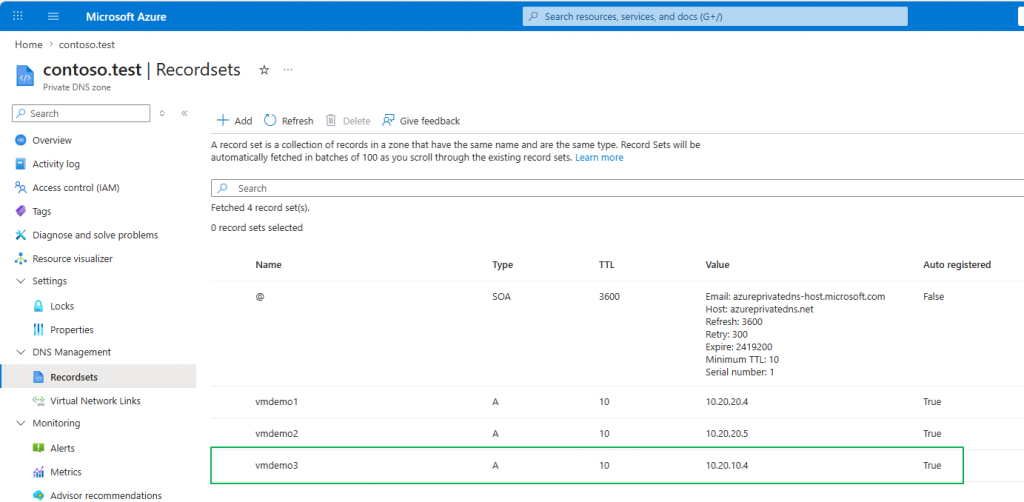
As you can see, the private DNS zone records include the vmdemo3 entry and demonstrate the Cross-Subnet auto registration capability.
Task 6: Validate name resolution between VMs
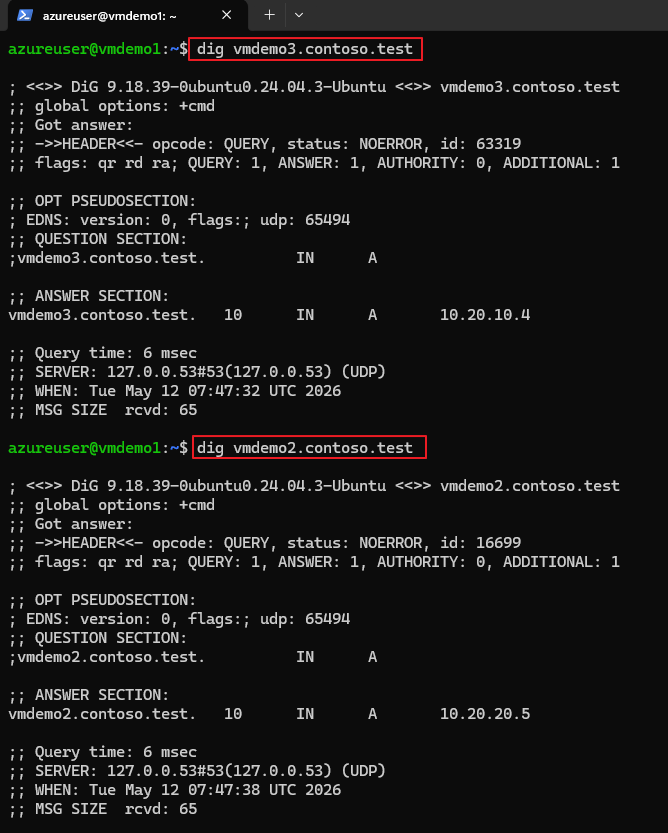
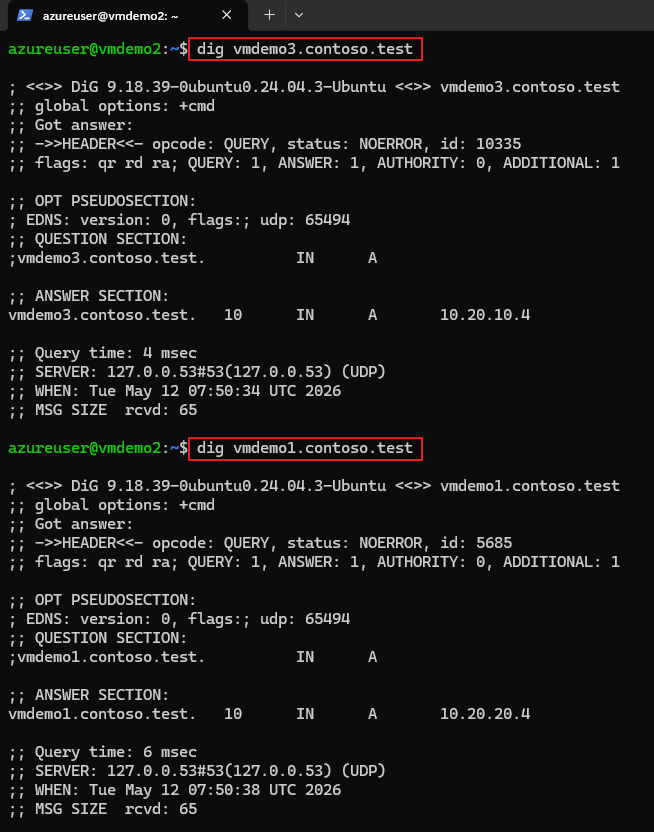
Once connected to vmdemo1, vmdemo2 and vmdemo3 over ssh (through Putty, Powershell or another supported terminal), launch the dig command to query the FQDN (*contoso.test) to the default dns server and obtain the the DNS records related to the private dns zone:
dig vmdemo1.contoso.test      # test vmdemo1 name resolution
dig vmdemo2.contoso.test      # test vmdemo2 name resolution
dig vmdemo3.contoso.test      # test vmdemo3 name resolution
vmdemo1
vmdemo2
vmdemo3
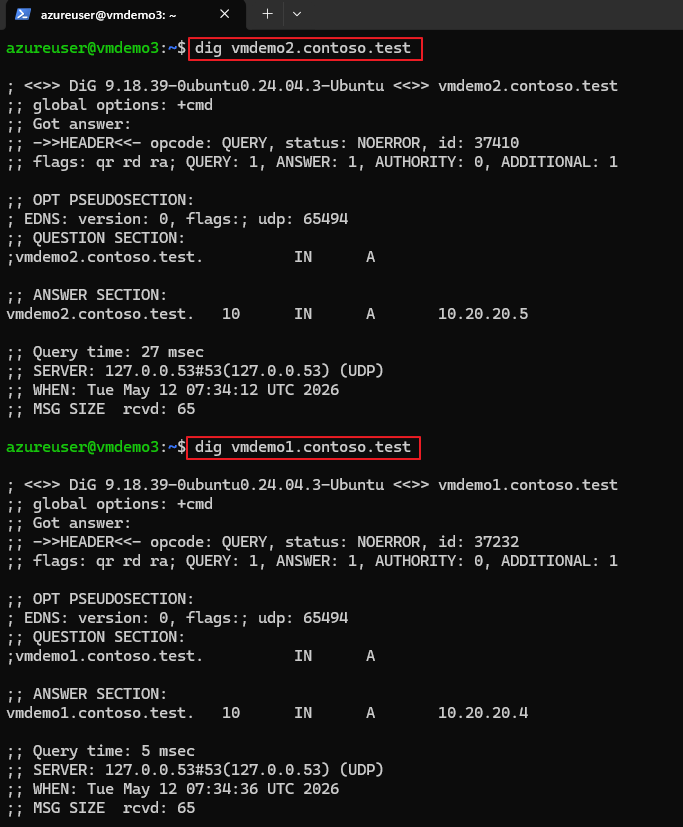
Azure-provided DNS successfully resolved VM hostnames across multiple subnets inside the same VNet.
Step 7: Cleanup (Important for Cost Control)
After completing the lab, it is recommended to delete the resources you created to avoid unnecessary charges and to keep your Azure environment clean. This step is especially relevant for exam labs and practice environments.
After the Azure login (see above), from Powershell run the command:
Remove-AzResourceGroup -Name "your-resource-group-name" -ForceIt is the fastest and most common cleanup method and reflects real-world administrative practices.
To confirm the resource group has been removed:
Get-AzResourceGroup -Name "your-resource-group-name"If the resource group no longer exists, no output will be returned.
Conclusion
This modified version of the Azure DNS lab demonstrates that Azure DNS functionality is fully compatible with Linux-based environments.
By replacing Windows VMs with Ubuntu systems and introducing a dedicated SharedServicesSubnet, the lab becomes:
- More lightweight
- More cloud-native
- More representative of real enterprise architectures
The exercise also highlights how Azure virtual networks provide seamless internal DNS resolution across multiple subnets without additional configuration.