
Introduction
I will integrate the Lab into my private Home LAN environment to make it easier to manage. I need to set up a static route to the lab “outside” network 192.168.5.0/24 via the eth0 VyOs Router interface (IP: 192.168.6.199) in order to access NVAs (Network Virtual Appliance) via ssh/https.
Connect Check Point SmartConsole to the Management Server
Check Point SmartConsole is the Windows-based GUI client administrators use to manage a Check Point security environment for configuring policies, managing gateways, viewing logs, and more.
1 – Downloading SmartConsole
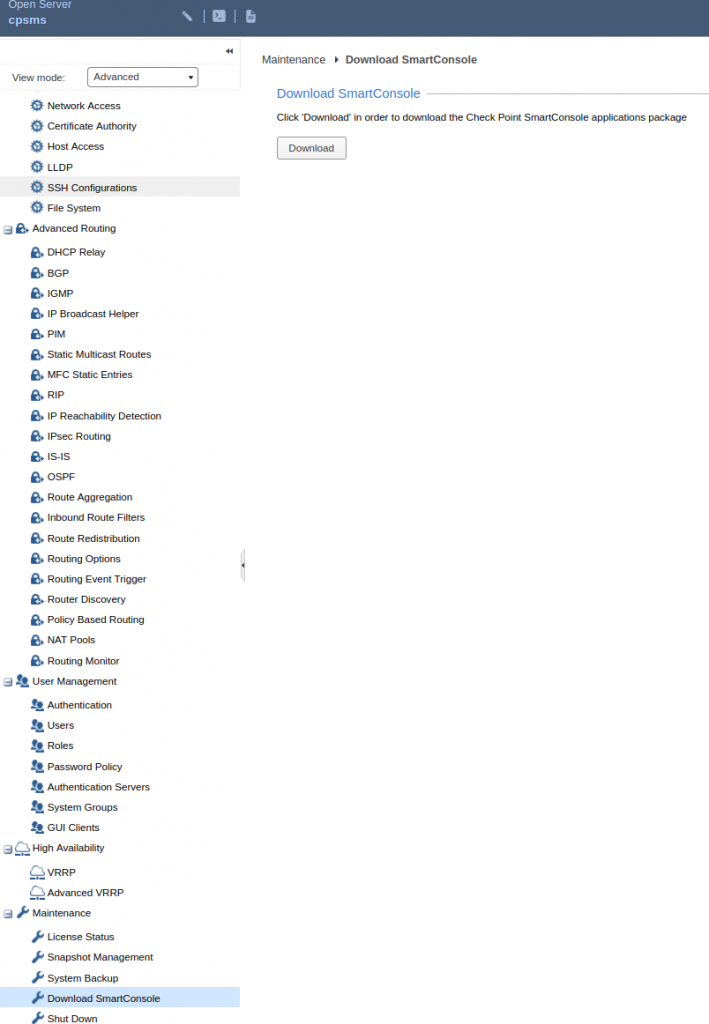
We can download directly it from the Management Server (Gaia Portal). This is the most common method and guarantees version compatibility with your server:
- Open a browser and navigate to the Gaia WebUI of your Security Management Server, e.g.
https://<management-server-IP>. - Log in with your Gaia administrator credentials.
- On the Overview page (or under Software Updates / the SmartConsole download widget, depending on version), locate the Download SmartConsole link or button.
- Click it to download the installer package (usually a
.exeor.zipfile) matching the exact build/version running on that server.
2 – Connecting SmartConsole to the Security Management Server
Once installed, open SmartConsole and connect it to the management server:
- Launch SmartConsole from the Start Menu or desktop shortcut.
- On the login screen, enter:
- Username — the administrator account configured on the Security Management Server.
- Password — the corresponding password.
- Server — the IP address or hostname of the Security Management Server. If you’ve connected to this server before, it may appear in a dropdown; otherwise select/type it manually (there’s usually an option like “More…” to add a new server entry).
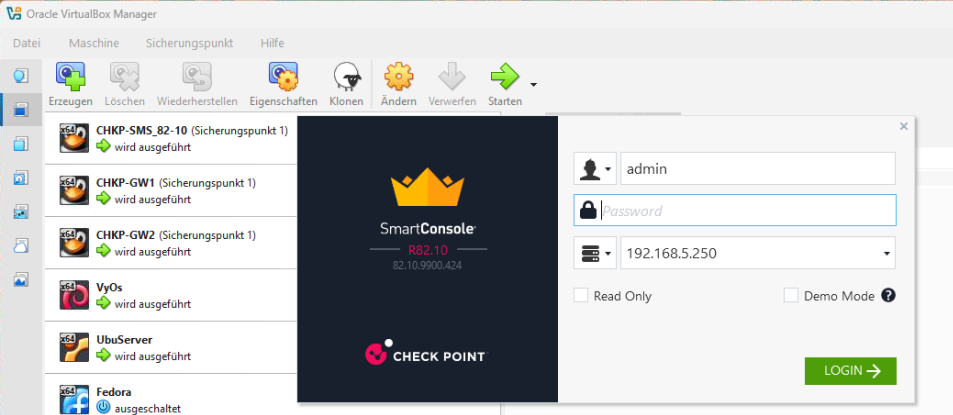
SmartConsole will load the management database — objects, policies, gateways — and you’ll land on the main SmartConsole workspace (Gateways & Servers, Security Policies, Logs & Monitor, Manage & Settings tabs).
3 – Connectivity Troubleshooting
If a Check Point SmartConsole cannot connect to the Management Server (Security Management Server / SMS), troubleshoot systematically from the network layer up to the application layer.
SMS:
- Check if the responsible management process (CPM) is running
- Check if the process is listening over its assigned Port: 19009
cpwd_admin list | grep CPM
ss -anpl | grep 19009
Client:
- Check if you can Ping the SMS
- Check routing
- Check if you can establish a tcp connection to the SMS over the tcp Port 19009
ping 192.168.5.250
tracert -d 192.168.5.250
tnc 192.168.5.250 -port 19009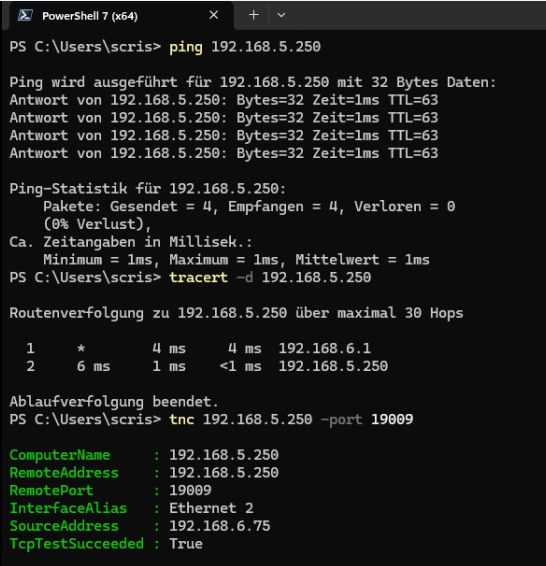
If you found any issue, I will suggest you to monitoring the CPM (Check Point Management) service log in real time. This is one of the most valuable logs for diagnosing why SmartConsole cannot connect. As you attempt a connection from SmartConsole, watch for new entries in the log.
tail -100f $FWDIR/log/cpm.elgHere are the most common types of errors and what they typically indicate:
| Error or Message | What it Usually Means | Recommended Action |
|---|---|---|
Connection refused | CPM cannot communicate with another internal service | Verify cpwd_admin list and ensure all required processes are running. |
Failed to connect to PostgreSQL | Management database is unavailable | Check PostgreSQL service and available disk space. |
Database is unavailable | CPM cannot access the management database | Verify PostgreSQL status and database health. |
java.lang.OutOfMemoryError | Java heap memory exhausted | Check RAM usage (free -h), inspect CPM memory allocation, and review whether the server is under memory pressure. |
SSLHandshakeException | SSL/TLS certificate problem | Verify ICA certificates, server certificate validity, and that client/server clocks are synchronized. |
Authentication failed | Invalid credentials or authentication issue | Verify username/password, external authentication (LDAP/RADIUS), and account status. |
Certificate validation failed | Trust relationship problem | Check the Internal CA (ICA), certificates, and system time. |
BindException: Address already in use | Required port is already occupied | Determine which process owns the port using netstat or ss. |
Cannot start CPM | CPM initialization failed | Review the lines immediately preceding the error for the root cause. |
Timeout waiting for response | Internal service did not respond | Check the health of CPD, FWM, and the database. |
Failed loading configuration | Configuration or upgrade issue | Validate management configuration files and review recent changes or upgrades. |
License validation failed | License problem | Check the output of cplic print. |